Content last revised on October 8, 2026
Assembly Integrity and Display Inspection for GP370-LG11-24V
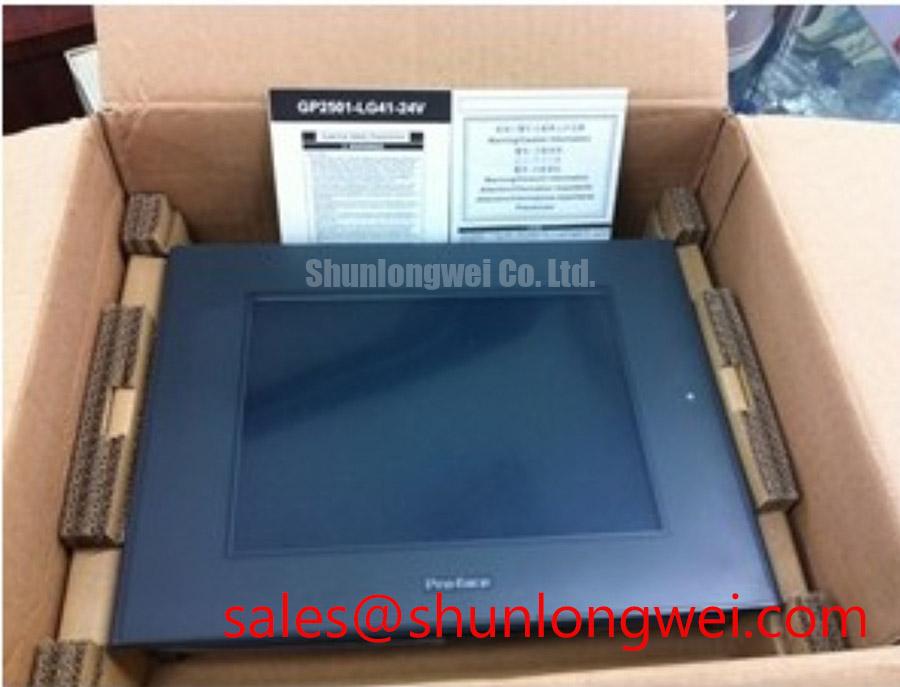
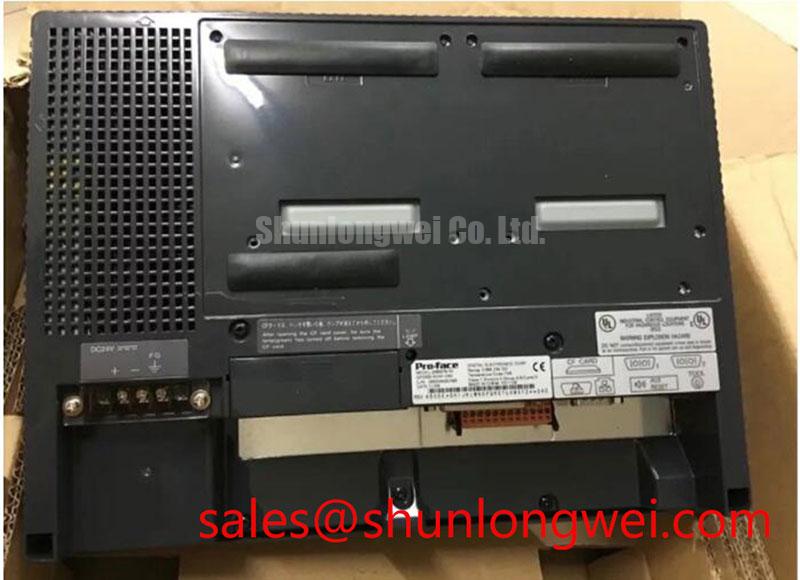
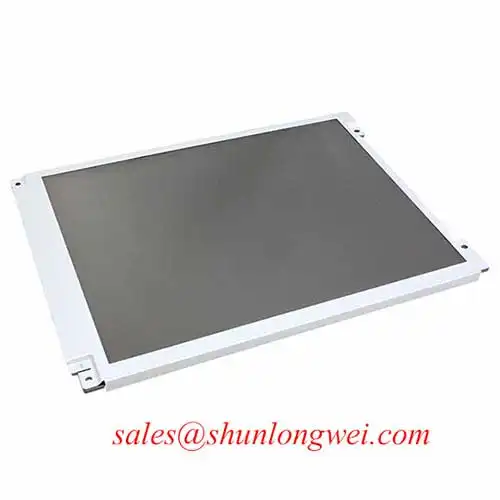
Scan the unpowered GP370-LG11-24V front surface under angled light for scratches, pressure marks and gaps around the enclosure edge. Then inspect the rear housing, mounting points and accessible connectors for damage that could affect panel fit or cable seating. Keep the inspection record tied to the complete model code: a similar-looking Pro-face unit is not enough evidence of mechanical or electrical compatibility.
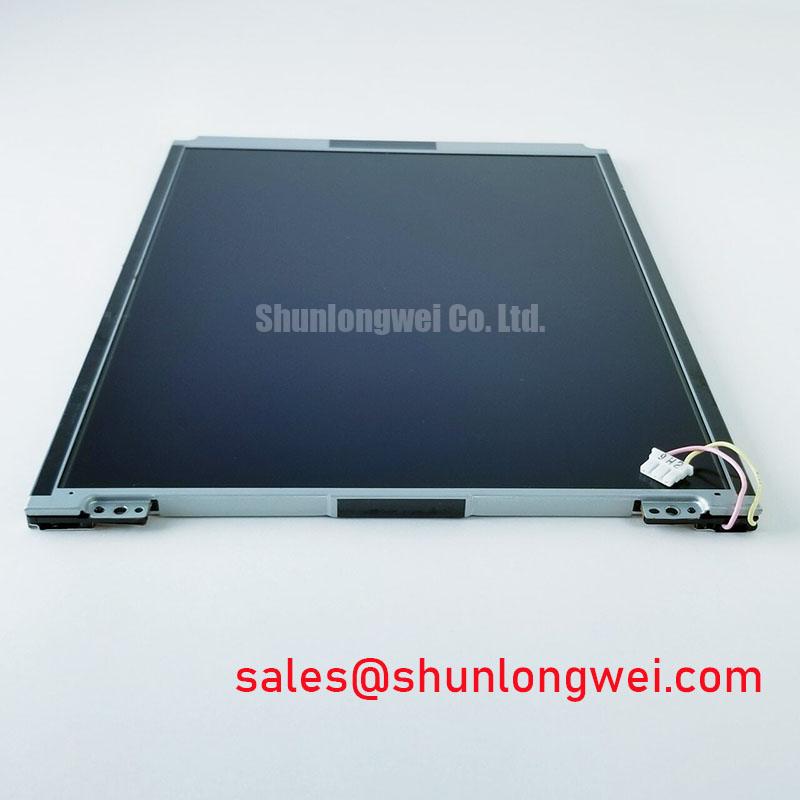
Once the assembly is connected to an identified, compatible test setup, display solid dark and light fields and, where supported, primary-color fields. Mark the position of any persistent bright or dark pixel, line defect, uneven illumination or touch-area discoloration. Repeat a questionable observation after changing the viewing angle and displayed image; reflections and image content can resemble panel defects. Photograph findings at a consistent camera exposure so later comparisons do not confuse an exposure change with a brightness change.
Evaluate readability under the lighting conditions expected at the equipment, paying attention to reflections and contrast across the full viewing area. A photographed screen cannot establish a certified sunlight-readability or contrast rating. Neither an anti-glare treatment nor a particular optical performance figure is specified in the available product information for this model, so those properties should not become acceptance criteria without the corresponding Pro-face documentation.
Check that the assembly sits evenly in its intended opening without forcing the housing into position. Record any witness marks left by the previous installation and compare them with the replacement mounting surfaces. As a Design Consideration, enclosure pressure and cable routing deserve separate checks: a panel can appear to fit while a trapped cable prevents its connector from remaining fully seated.
Tracing Intermittent Images and Touch Responses
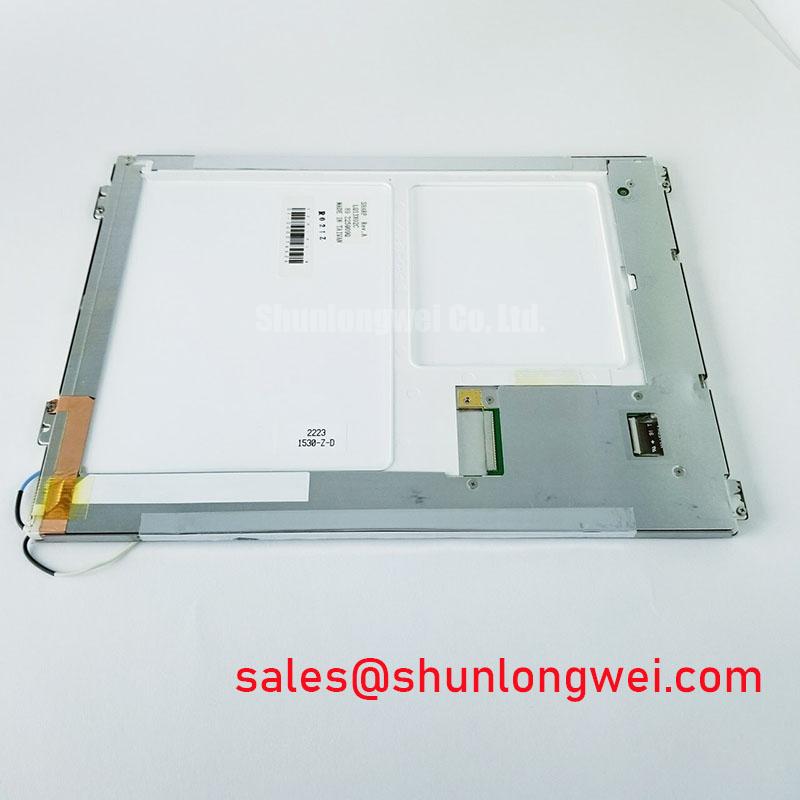
Reseat the accessible display and touch connections with power isolated, then compare the cable position and latch engagement with a known-good assembly or the equipment drawing. Intermittent image loss, partial updates and missed touches are observations, not diagnoses. Check whether a fault changes when the cable is supported in its installed position; avoid bending it to provoke a result that would not occur in service.
💡 Bench Tip: Keep the assembly under ESD protection and align each accessible ribbon cable squarely before closing its connector latch.
Trace the complete connection path when an image appears but touch input does not respond. The display path and the operator-input path perform different jobs, so one working function does not verify the other. Compare connector seating, cable condition and the equipment’s input indications before assigning the fault to the HMI assembly. A touch test should cover the center, edges and corners using the equipment’s normal screen or service procedure, with each missed response recorded by location.
Do not infer glove or wet-touch performance from the term “touch screen.” The available product information identifies an HMI Touch Screen Assembly but does not establish its sensing method or sensitivity under those conditions. If gloves or moisture are part of the intended operating environment, test them against the installed equipment’s requirements and applicable Pro-face operating instructions rather than treating a brief bench response as a performance rating.
The characters 24V belong to the model code; confirm the required supply and connector assignments from the unit marking and original equipment documentation before energizing a test fixture. Where a displayed image breaks up only while nearby equipment is operating, observe the supply at the HMI connection and compare cable routing and grounding with the equipment drawing. This is a Design Consideration for investigating interference, not an EMC compliance claim for the panel.
Backlight Appearance and Enclosure Reliability
Display the same full-screen image at the same brightness setting before comparing illumination across the GP370-LG11-24V viewing area. Look for dark zones, flicker and uneven tone, and allow the test setup to reach a stable operating condition before recording them. Compare against a known-good unit where possible. Ambient light, camera white balance and viewing angle can alter the apparent result, so keep those conditions consistent.
If the image remains faint while touch responses continue, inspect the equipment’s display settings and relevant connections before treating the observation as a backlight fault. If the screen goes dark intermittently, record whether the HMI itself remains responsive and whether the event follows a cable movement, a supply disturbance or a change in operating state. Those observations help separate a display-path problem from a broader power or control problem without asserting a single cause.
No LED backlight topology, constant-current driver behavior, dimming frequency, brightness rating or backlight lifetime is established by the available product information. Do not assign this assembly an LED life curve or a fault-output function on the basis of general display practice. For a replacement assessment, obtain the applicable unit documentation and compare the observable brightness and display behavior under the equipment’s actual operating settings.
Inspect the enclosure seal contact area and mounting surfaces during removal. A displaced seal, uneven seating or cable pressed against the housing can complicate a display complaint even when the image is clear on a bench. For broader enclosure and display integration considerations, the Industrial Display & HMI Solutions guide provides useful context; acceptance of this assembly still depends on the equipment’s own installation requirements.
Checking GP370-LG11-24V Compatibility in a Rectifier Control Cabinet
Compare the installed HMI’s complete model marking, connector arrangement and mounting interface with the candidate GP370-LG11-24V before transferring any cables. In a green hydrogen electrolyzer DC power rectifier, the operator panel is an interface to the equipment controls; it is not a rectifier switching device. Diode recovery, firing angle, heatsink contact and RC snubber sizing therefore do not describe this assembly’s display compatibility.
Use the equipment drawing to identify each cable and its destination, then check that the replacement can be mounted without changing the intended routing or connector engagement. Confirm the required supply at the documented connection point and verify the startup behavior specified for the machine. A matching model code is valuable identification, but the installed equipment configuration determines whether the operator screens and touch functions can be used as intended.
After installation, run the equipment’s permitted display and input checks without assuming that a visible startup screen proves full integration. Observe text legibility, screen updates and touch response across the functions available in the approved test state. If a status field does not update, compare the underlying controller indication and communication path before attributing the issue to the LCD assembly. Record the exact symptom, screen and operating state for the next maintenance step.